Button debounce
The short answer
When a real button's metal contacts close, they bounce: they touch, spring apart and touch again several times in a few milliseconds. The Arduino is fast enough to see every bounce as a separate press. Debouncing means ignoring changes that happen too soon after the last one, usually anything within 50 ms.
if (reading != lastReading) lastChange = millis();      // it moved: restart the timer
if (millis() - lastChange > 50 && reading != state) {   // steady for 50 ms?
  state = reading;                                      // now it really changed
}
The full sketch is below. First, why it happens.
What bouncing looks like
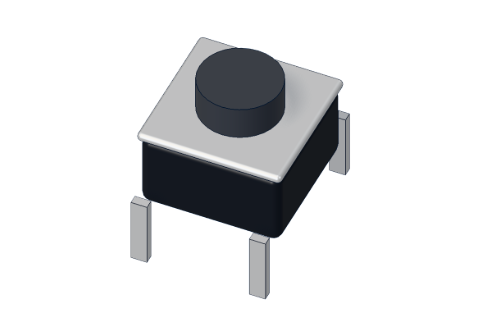
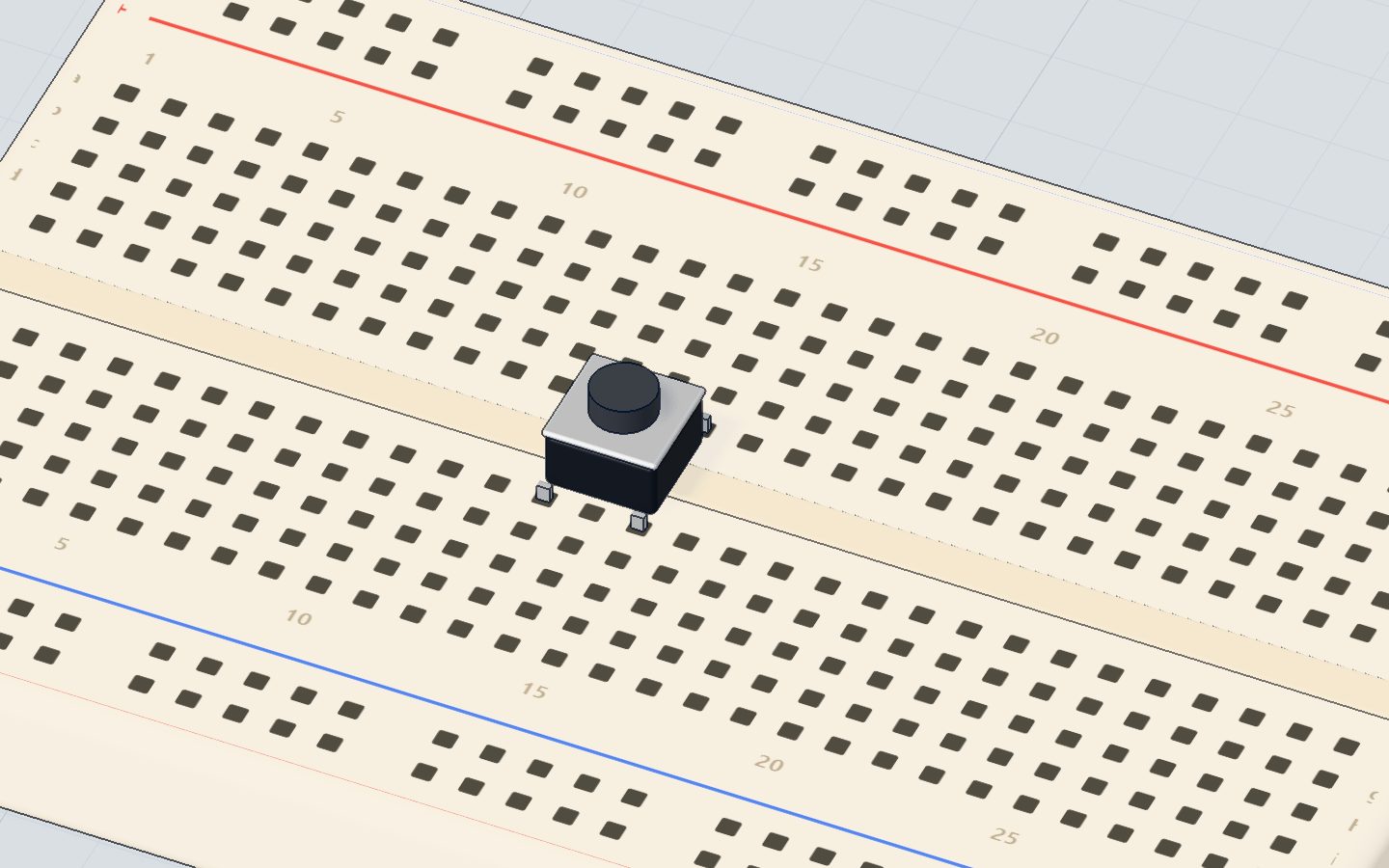
Inside a push button, a small springy metal piece is pushed onto two contacts (see how a push button works). Metal hitting metal doesn't stop dead. It rattles, like a dropped coin, for a short time before it settles.
| Time | |
|---|---|
| Contact bounce on a typical small button | about 1–10 ms |
One turn of a short loop() on an UNO | a few microseconds |
| A fast human tap | about 100 ms |
loop() can run hundreds of times during the bounce. A sketch that counts every LOW→HIGH change will count every rattle. The good news is in the last row: people press much more slowly than buttons bounce, so waiting 50 ms costs nothing you can feel.
When you need it (and when you don't)
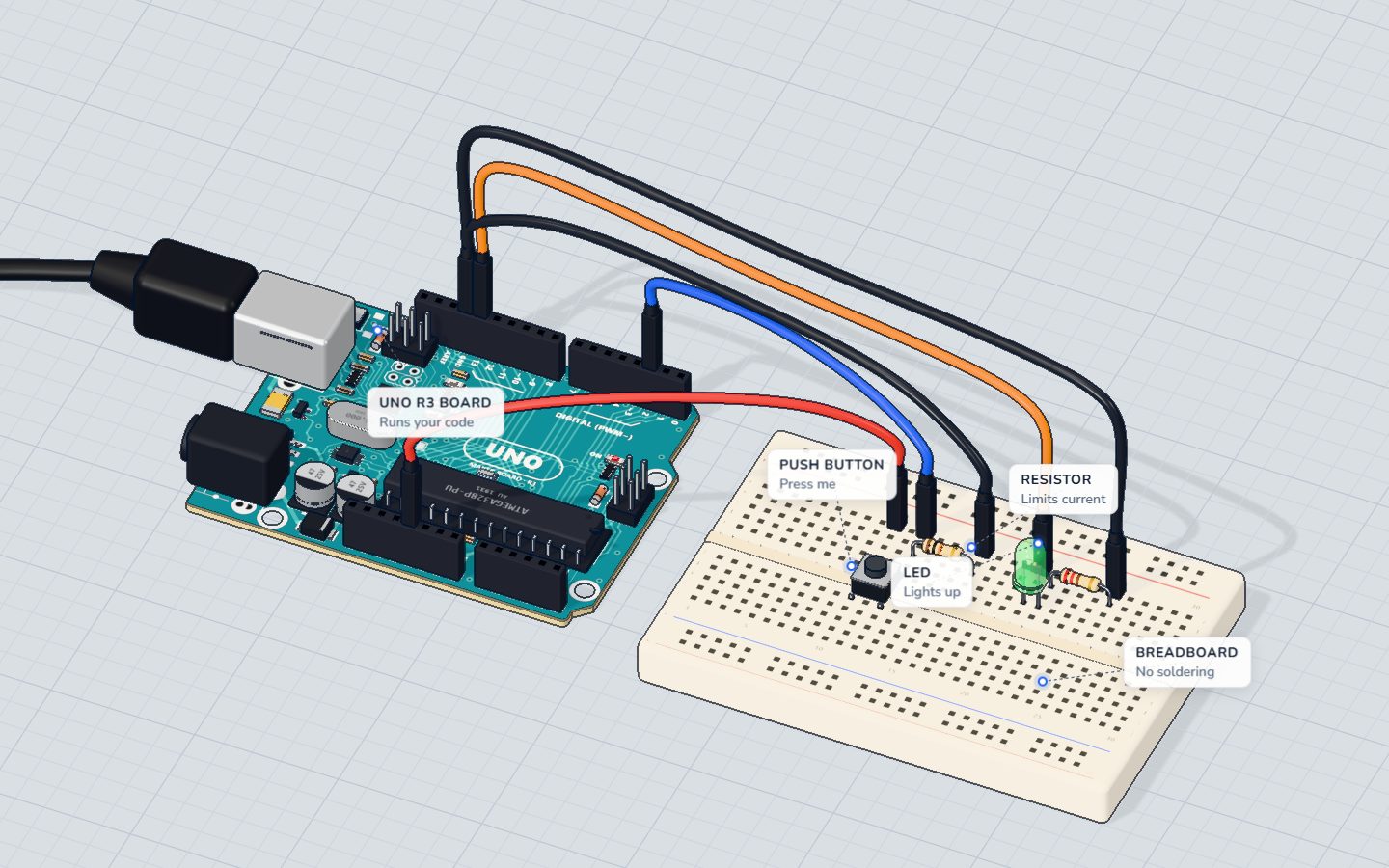
- You don't need it if the LED simply follows the button ("on while held"), like the push button project. A few ms of flicker at the start is invisible.
- You do need it whenever you react to the moment of a press: counting presses, toggling on/off with one button, moving through a menu, starting a game.
The problem in code
This toggle looks right, but on a real button it often lands on the wrong state:
const int BUTTON = 2, LED = 13;
int was = HIGH;
bool on = false;

void setup() {
  pinMode(BUTTON, INPUT_PULLUP);   // pressed = LOW
  pinMode(LED, OUTPUT);
}

void loop() {
  int now = digitalRead(BUTTON);
  if (was == HIGH && now == LOW) {   // the moment of a press
    on = !on;                        // flip
    digitalWrite(LED, on);
  }
  was = now;
}
If the contacts bounce three times, the LED flips three times: off, on, off. You pressed once, and it looks like nothing happened.
The fix: wait until it is steady
The idea: only believe a change after the pin has stayed the same for 50 ms. We use millis() so nothing else in the sketch has to wait.
const int BUTTON = 2, LED = 13;
const unsigned long DEBOUNCE = 50;    // ms

int state = HIGH;          // the button's settled state
int lastReading = HIGH;    // what we read last time
unsigned long lastChange = 0;
bool on = false;
int presses = 0;

void setup() {
  pinMode(BUTTON, INPUT_PULLUP);      // pressed = LOW, no resistor needed
  pinMode(LED, OUTPUT);
  Serial.begin(9600);
}

void loop() {
  int reading = digitalRead(BUTTON);
  if (reading != lastReading) lastChange = millis();   // it moved: restart the timer
  lastReading = reading;

  if (millis() - lastChange > DEBOUNCE && reading != state) {
    state = reading;                   // steady for 50 ms: a real change
    if (state == LOW) {                // ...and it is a press
      on = !on;
      digitalWrite(LED, on);
      presses++;
      Serial.print("presses: ");
      Serial.println(presses);
    }
  }
}
Line by line:
stateis what we believe the button is.readingis what the pin says right now, bounces and all.if (reading != lastReading) lastChange = millis();Every rattle restarts the 50 ms timer, so a bouncing pin never gets through.millis() - lastChange > DEBOUNCEis true only once the pin has been quiet for more than 50 ms.reading != statemeans the steady value is different from what we believed, so it is a real change. We store it.if (state == LOW)reacts only to the press, not the release. Each press now toggles the LED exactly once and adds exactly one to the count.
The quick fix (and why it's not the best)
Many sketches debounce with a delay:
if (was == HIGH && now == LOW) {
  on = !on;
  digitalWrite(LED, on);
  delay(50);   // ignore the bounce
}
It works for a single button in a tiny sketch. But for those 50 ms, the board is deaf to everything else: other buttons, sensors, timers. With the millis() version, the rest of loop() keeps running.
A hardware fix
You can also smooth the bounce with a capacitor: about 100 nF across the button, with the pull-up resistor. The capacitor charges and empties slowly, so the quick rattles never reach the pin. It's common in products with no spare code space, but for learning, the software fix is easier and costs nothing.
Common mistakes
- Using an
intfor times.lastChangemust beunsigned long, or the timer breaks after 32.7 seconds. - Debounce time too long. 500 ms makes fast double presses disappear. 20–50 ms is right for most buttons.
- Forgetting
lastReading = reading;. The timer restarts on every turn and the press is never accepted. - Counting on release and press. Without
if (state == LOW)you count two per press. Pick one edge. - Debouncing many buttons with one timer. Each button needs its own
state,lastReadingandlastChange. Use arrays to keep them tidy.
Check yourself
Why does one press sometimes count as several?
The contacts rattle for a few milliseconds, and loop() runs fast enough to read each rattle as a press.
About how long should a debounce wait be?
Bounce lasts a few ms; a person can't press faster than about 100 ms. 50 ms sits safely between.
Why use millis() instead of delay(50) to debounce?
delay() stops the whole board; the millis() timer only ignores the one button.
Questions people ask
What is button debounce on Arduino?
It is code (or a small capacitor) that ignores the fast on-off flickers a button makes when its contacts touch. It makes one press count as exactly one press.
Do I need debounce with INPUT_PULLUP?
Yes. INPUT_PULLUP stops the pin from floating when the button is open, but it doesn't stop the contacts from bouncing when you press. They solve different problems.
Is there an Arduino library for debounce?
Yes, several, such as Bounce2, and they work well. Writing it yourself first, as above, shows you exactly what they do, and it is only a few lines.
Do touch sensors and keypads bounce too?
Mechanical keypads do, so they are debounced the same way, and most keypad libraries already do it. Capacitive touch sensors have no metal contacts, so they don't bounce, but their readings can be noisy.
What's next
Build the push button project and add this toggle, then use it on all eight keys of the mini piano.
Build it yourself in 3DFree, in your browser — no board, no wires, nothing to buy.Open the 3D lab →Your progress stays on this device — no account, nothing sent anywhere.
Last updated 2026-11-11