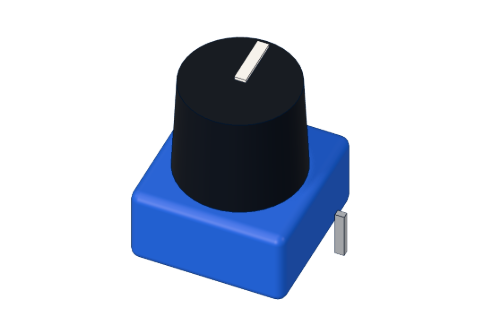
What you need
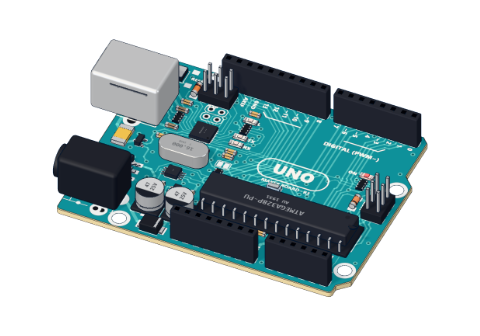 Arduino UNO R3 (or a compatible board)
- USB cable (A to B)
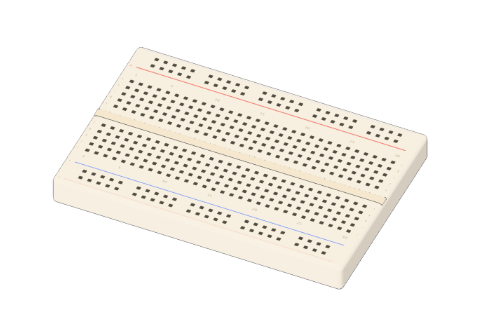 Half-size breadboard
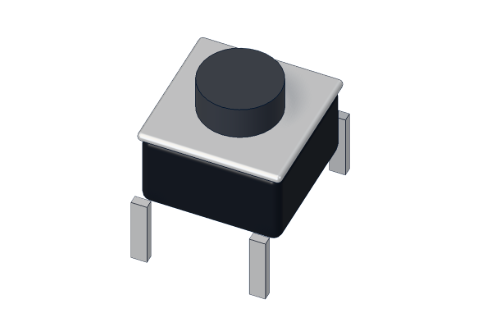 Push button (6 mm)
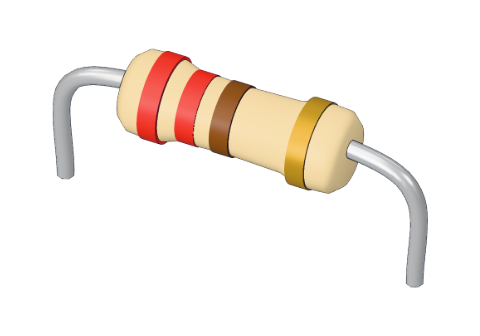 10 kΩ resistor
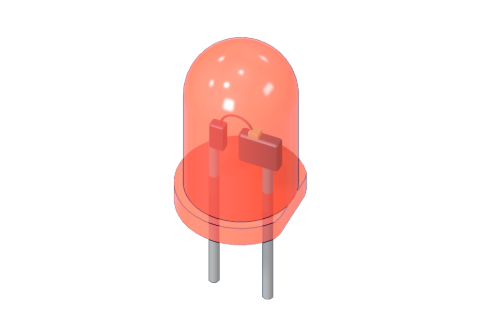 5 mm LED
- 220 Ω resistor
- Jumper wires (male–male)
Don't have the parts? Build it in 3D first.
What you will build
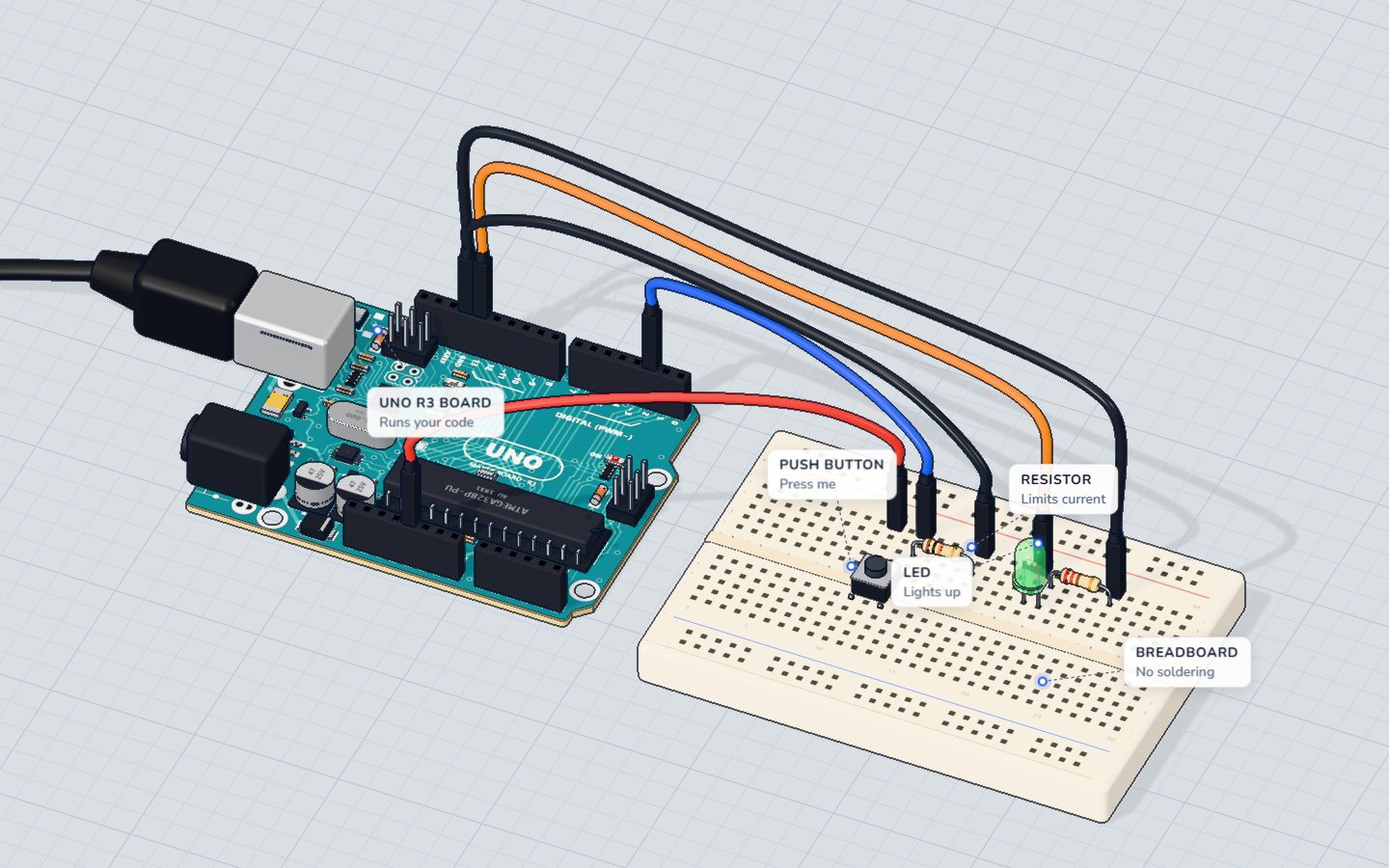
A push button and a green LED. Hold the button and the LED lights; let go and it turns off. The sketch also writes pressed or released to the serial monitor — but only when something changes, not thousands of times a second.
This is your first input: the program reacts to the world instead of just following a timetable. Doorbells, keyboards, game controllers and the "start" button on a microwave all work this way.
How it works
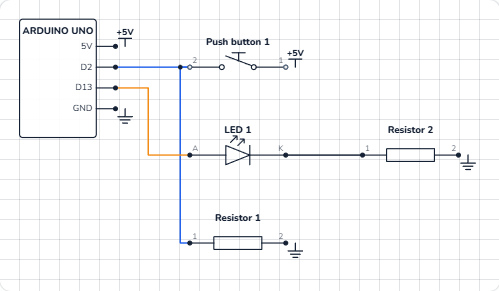
A push button is a switch with a spring. Press it and two metal contacts touch; let go and they spring apart. In this circuit the button sits between 5 V and pin 2:
- Pressed: 5 V reaches pin 2.
digitalRead(2)gives HIGH. - Released: the button is open. A 10 kΩ resistor from pin 2 to GND gently pulls the pin down to 0 V.
digitalRead(2)gives LOW.
Why the resistor? Without it, a released button leaves pin 2 connected to nothing. An input pin with nothing on it "floats": it picks up tiny charges from your hand and nearby wires and reads HIGH, LOW, HIGH at random. The resistor gives the pin a clear LOW. It is called a pull-down resistor because it pulls the pin down to ground. Read more in pull-up and pull-down resistors.
| Value | |
|---|---|
| Pin 2 when pressed | 5 V → HIGH |
| Pin 2 when released | 0 V (through 10 kΩ) → LOW |
| Current through the 10 kΩ when pressed | 5 V ÷ 10 000 Ω = 0.5 mA |
| Green LED current | (5 − 2.1) V ÷ 220 Ω ≈ 13 mA |
The 10 kΩ is big on purpose: when you press, 5 V meets GND through it, and a big resistor keeps that current tiny. A 0 Ω "resistor" there would be a short circuit.
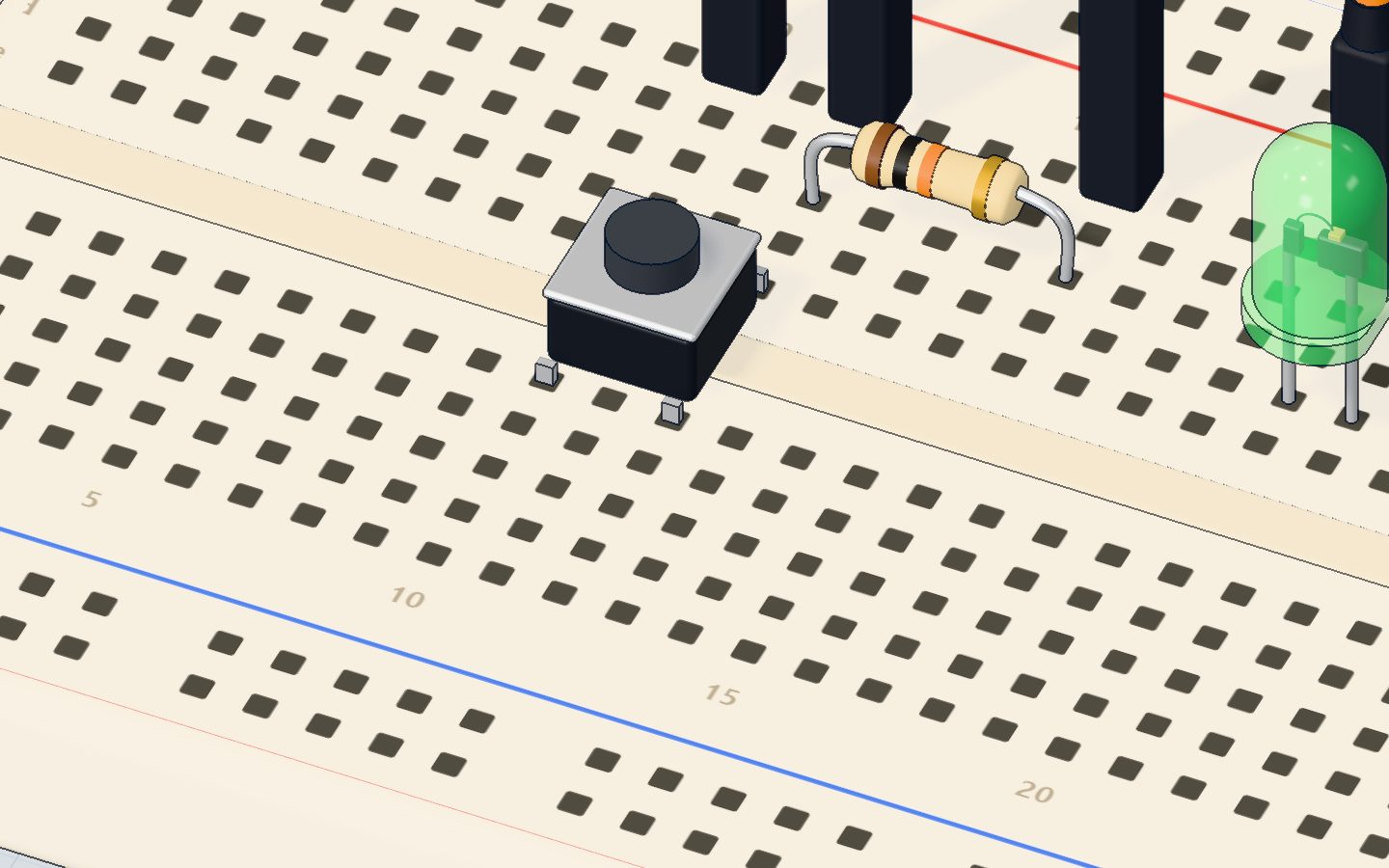
The wiring
The button has four legs and sits across the middle gap of the breadboard, in columns 10 and 12. The legs facing each other across the gap are always joined; pressing joins column 10 to column 12. See how a push button works.
- Push the button in across the gap, legs in 10e, 12e, 10f, 12f.
- Put the 10 kΩ resistor from 12c to 16c.
- Jumper wires: 5V → 10a, pin 2 → 12a, 16a → GND.
- Push the green LED in with its long leg (+) in 20d and its short leg in 21d.
- Put the 220 Ω resistor from 21b to 25b.
- Jumper wires: pin 13 → 20a, 25a → GND.
| Part pin | Goes to | What it does |
|---|---|---|
| Button, column 10 | 5V | Brings 5 V to the button |
| Button, column 12 | Pin 2 | The pin that reads the button |
| 10 kΩ resistor | Column 12 → column 16 → GND | Pull-down: keeps pin 2 LOW when released |
| LED long leg (+) | Pin 13 | The program switches the LED |
| LED short leg (−) | 220 Ω → GND | The resistor limits the current |
The code, line by line
const int BUTTON = 2;
const int LED = 13;
int was = LOW;

void setup() {
  pinMode(BUTTON, INPUT);   // the 10 kΩ resistor pulls it down to LOW
  pinMode(LED, OUTPUT);
  Serial.begin(9600);
}

void loop() {
  int now = digitalRead(BUTTON);
  digitalWrite(LED, now);
  if (now != was) {         // only report a change
    Serial.println(now == HIGH ? "pressed" : "released");
    was = now;
  }
}
const int BUTTON = 2;andLED = 13give the pins names.int was = LOW;remembers what the button was last time.pinMode(BUTTON, INPUT)makes pin 2 an input: the program only reads it.digitalRead(BUTTON)returns HIGH (1) or LOW (0). The result goes intonow.digitalWrite(LED, now)copies the button to the LED: HIGH in, HIGH out.if (now != was)—!=means "is not equal". This is true only in the moment the button changes.now == HIGH ? "pressed" : "released"is a short if/else: ifnowis HIGH, use "pressed", otherwise "released".was = now;stores the new state, so the same change is not reported twice.
Common mistakes
- The LED flickers or turns on by itself. The pull-down is missing or in the wrong strip, so pin 2 floats. The 10 kΩ must join pin 2's strip to GND.
- The LED is always on. The button is turned the wrong way, so 5 V and pin 2 are in legs that are always joined. Put it across the gap as shown, or turn it a quarter turn.
- One press prints "pressed" several times. A real button's contacts bounce for a few milliseconds. Add
delay(20);at the end ofloop()as a simple fix (this is called debouncing). - Nothing happens at all. The button is not across the gap, or the wire goes to the wrong pin. The code reads pin 2.
Try these challenges
- Swap the meaning: make the LED off while the button is held (hint:
digitalWrite(LED, !now);). - Count presses and print the number each time, like
press 3. - Make a toggle: one press turns the LED on, the next press turns it off.
- In the 3D lab, use Keep it pressed in the button's window and watch the serial monitor print just one line.
Check yourself
What does the 10 kΩ pull-down resistor do?
Without it, the input floats and reads random values when the button is open.
What does digitalRead() return?
digitalRead() only knows two states. For in-between values, use analogRead() on an analog pin.
Why does the sketch compare now with was?
If it printed every loop, the serial monitor would fill with thousands of lines a second.
Questions people ask
Do I need a resistor for a push button on Arduino?
Yes — either an external pull-down (like here) or a pull-up. The easy alternative is the UNO's built-in pull-up: pinMode(2, INPUT_PULLUP), with the button between pin 2 and GND. Then a pressed button reads LOW. The piano project uses exactly that.
Why does my button read random values?
Because the pin is floating — connected to nothing when the button is open. Add a 10 kΩ pull-down to GND, or use INPUT_PULLUP.
Which way round does a 4-leg push button go?
Across the breadboard's middle gap. The two legs facing each other across the gap are always connected; pressing connects the left pair to the right pair. If the button seems "always pressed", turn it a quarter turn.
Can I use any pin for a button?
Yes. Any digital pin from 2 to 13 works, and the analog pins A0–A5 can read buttons too. Avoid pins 0 and 1: they carry the serial monitor.
What's next
A button is either on or off. Next, read a value in between: turn a potentiometer knob and dim an LED smoothly.
Try this project in 3DRun the code, press the parts, break things safely — free, in your browser.Open in 3D →Your progress stays on this device — no account, nothing sent anywhere.
Last updated 2026-10-29