What you need
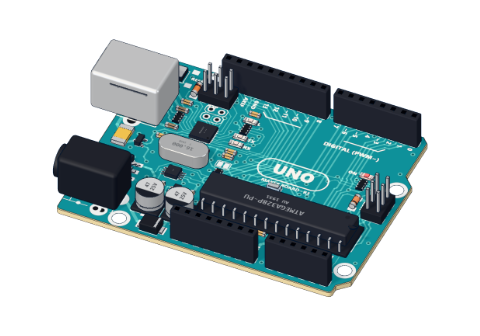 Arduino UNO R3 (or a compatible board)
- USB cable (A to B)
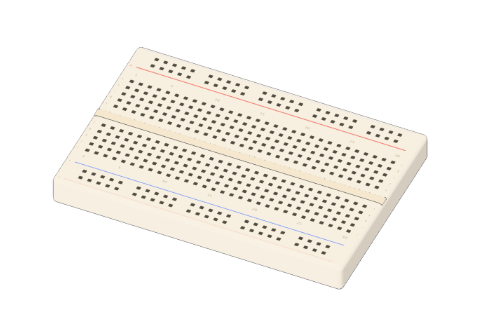 Half-size breadboard
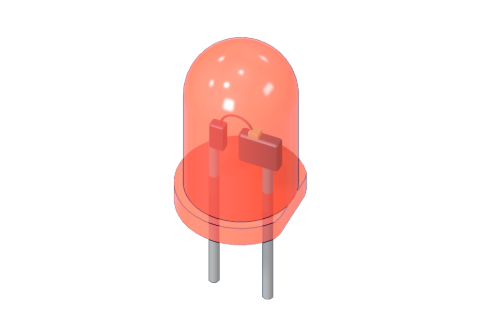 5 mm LED
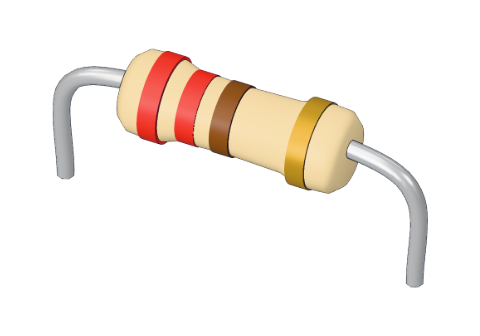 220 Ω resistor
- Jumper wires (male–male)
Don't have the parts? Build it in 3D first.
What you will build
A red LED that switches on for one second, off for one second, forever. It sounds tiny — but it is the same thing every Arduino project does: a program decides when a pin is on or off, and a circuit turns that into something you can see. Once you understand this one, motors, buzzers and robots are the same idea with different parts.
How it works, in one picture
An Arduino pin is like a tiny switch that the program flips between 5 V (HIGH) and 0 V (LOW).
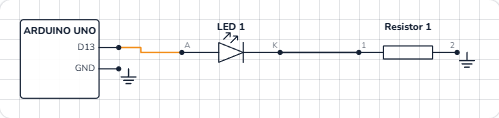
- When pin 13 is HIGH, current flows out of the pin, through the LED, through the resistor, and back into GND. The LED lights.
- When pin 13 is LOW, both ends of the circuit are at 0 V. No current flows, so the LED goes dark.
Current always needs a complete loop: out of the pin, through the parts, and back to GND. Break the loop anywhere and nothing happens.
Why the LED needs a resistor
An LED has almost no resistance once it starts to glow. Wired straight to 5 V it would try to pull far more current than it can take — and burn out (in our 3D lab it really does, with a puff of smoke 💨).
The 220 Ω resistor limits the current. With a red LED (about 1.9 V across it), the resistor gets the rest:
| Value | |
|---|---|
| Pin voltage | 5 V |
| LED voltage (red) | ≈ 1.9 V |
| Left for the resistor | 5 − 1.9 = 3.1 V |
| Current (Ohm's law, I = V ÷ R) | 3.1 V ÷ 220 Ω ≈ 14 mA |
14 mA is bright, safe for the LED (max about 20 mA) and safe for the pin (max 40 mA).
The wiring
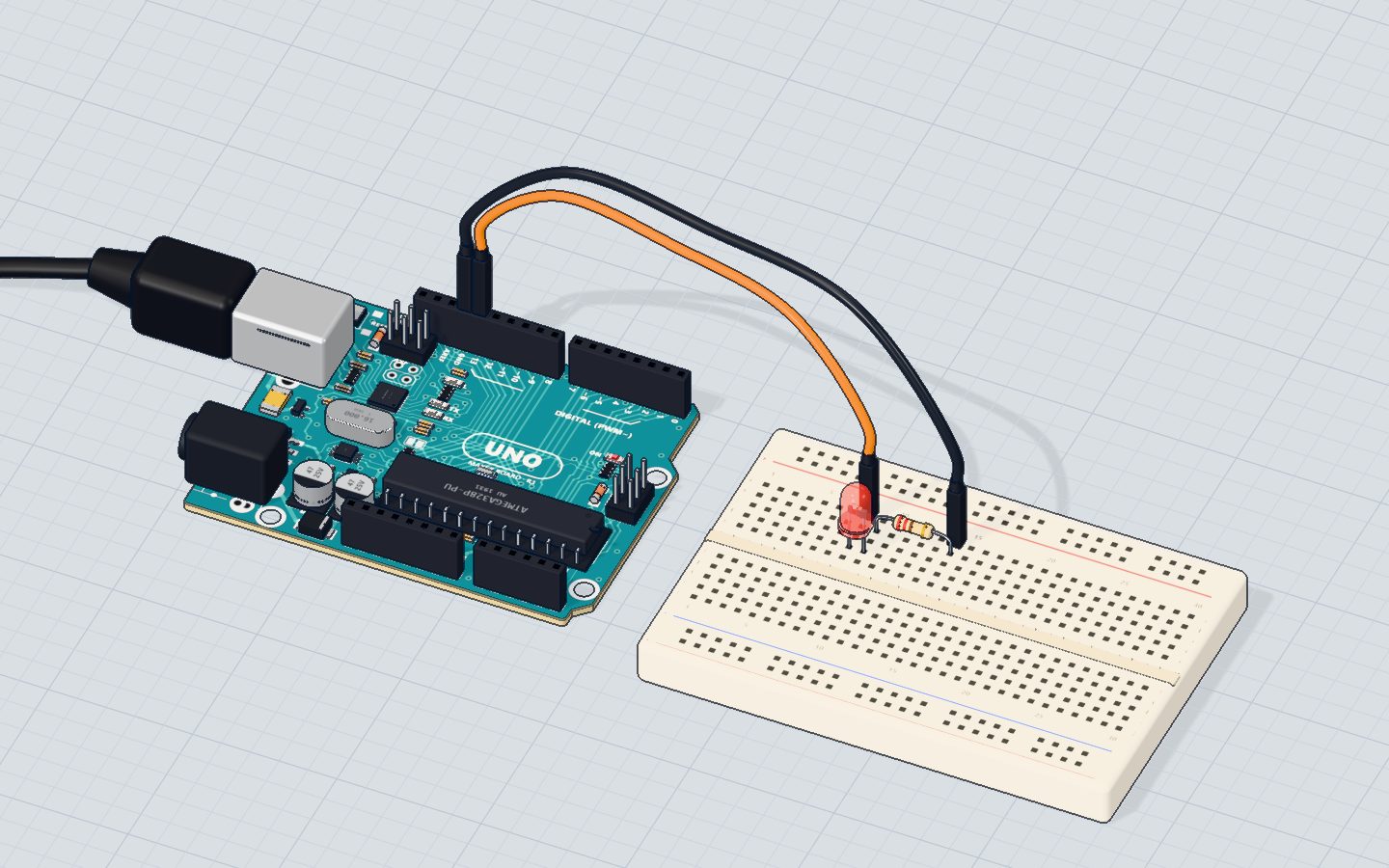
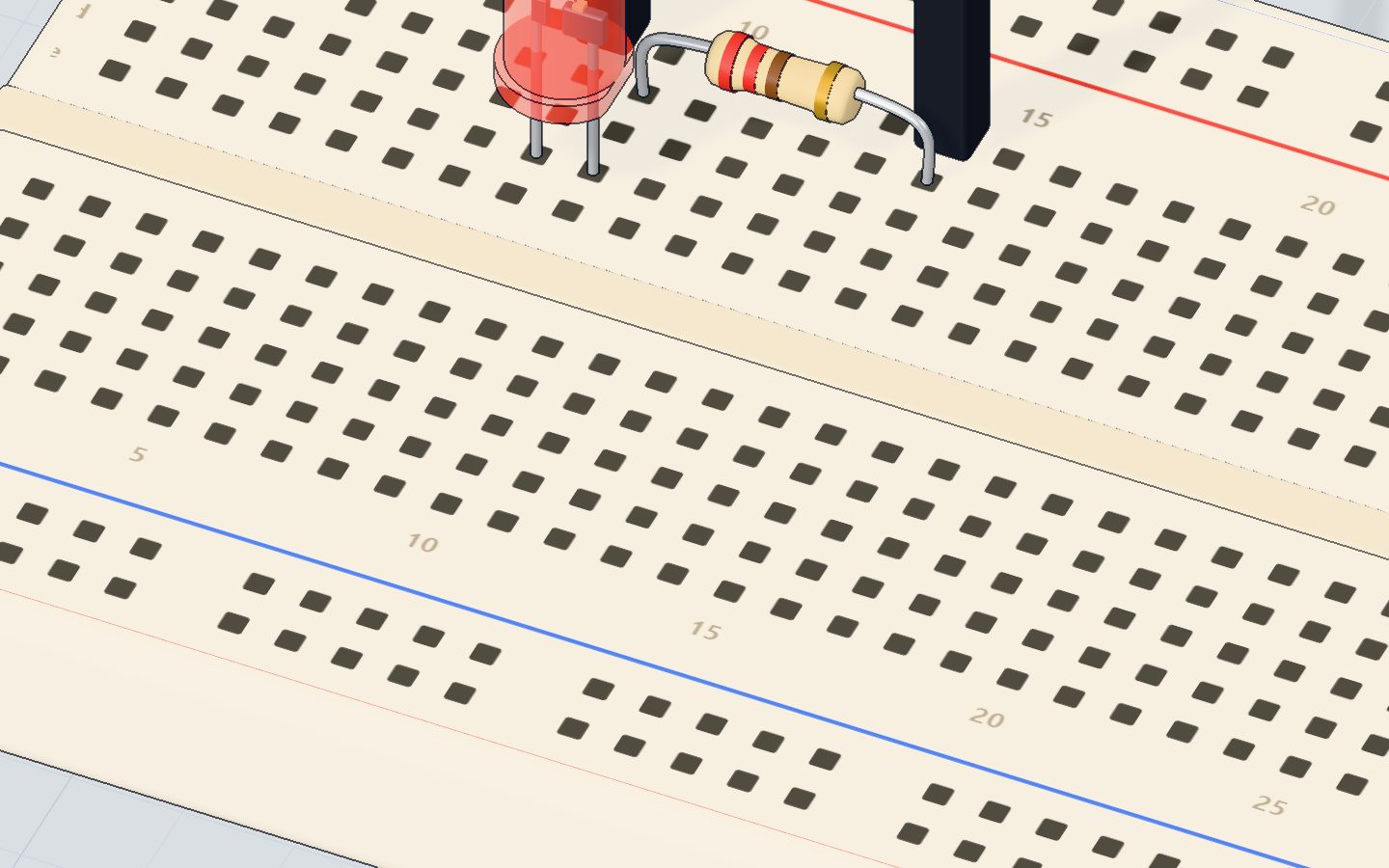
- Push the LED into the breadboard. The long leg is the anode (+), the short leg the cathode (−).
- Put the 220 Ω resistor so that one of its legs is in the same row of five holes as the LED's short leg.
- A jumper wire from pin 13 to the LED's long leg.
- A jumper wire from the resistor's free leg to GND.
Here is the same circuit as a schematic, the way electronics engineers draw it. Pins with the same label are connected:
The code, line by line
void setup() {
  pinMode(13, OUTPUT);
  Serial.begin(9600);
}

void loop() {
  digitalWrite(13, HIGH);
  Serial.println("LED on");
  delay(1000);
  digitalWrite(13, LOW);
  Serial.println("LED off");
  delay(1000);
}setup()runs once, when the board powers up or resets.pinMode(13, OUTPUT)makes pin 13 an output: the program drives it, instead of reading it.Serial.begin(9600)opens the serial connection so the board can print messages to your computer (the Serial Monitor) at 9600 bits per second.loop()runs again and again, forever.digitalWrite(13, HIGH)puts 5 V on the pin — the LED turns on.delay(1000)waits 1000 milliseconds = 1 second. The board does nothing else meanwhile.digitalWrite(13, LOW)puts 0 V on the pin — the LED turns off.
Common mistakes
- The LED is in backwards. It only conducts one way. Flip it: long leg toward the pin.
- No resistor. The LED is bright for a moment, then dead. Always add one.
- Both LED legs in the same row. The five holes of a row are joined inside the breadboard, so the LED is short-circuited and never lights. See how a breadboard works.
- Wire to the wrong pin. The code says 13 — the wire must go to 13.
Try these challenges
- Make it blink twice as fast (change both delays to
500). - Make a heartbeat: on 100 ms, off 100 ms, on 100 ms, off 700 ms.
- Move the LED to pin 12 — change the wire and the code.
- In the 3D lab, delete the resistor and put a jumper wire in its place (from the LED's short-leg row to GND). Press Run and watch what happens — then press Replace part.
Check yourself
Which leg of the LED goes toward pin 13?
An LED only conducts one way: current goes in at the long leg (anode) and out at the short leg (cathode).
What does delay(1000) do?
delay() pauses the program for that many milliseconds — 1000 ms is one second.
Why is the 220 Ω resistor there?
Without it the LED would try to pull far more current than it can take, and burn out.
Questions people ask
Can I use any pin, not just 13?
Yes — pins 2 to 13 all work as outputs. Change the number in pinMode and digitalWrite to match.
Why 220 Ω? Can I use 330 Ω or 1 kΩ?
Anything from about 150 Ω to 1 kΩ works. Bigger is dimmer and gentler; 220 Ω or 330 Ω is the usual choice.
Do I need an Arduino to try this?
No. Every project here runs in our free 3D lab in your browser — the code really compiles and runs on a simulated ATmega328P, the same chip as on the UNO.
What's next
You now know how to control something. Next, learn how to read something: a push button — your first input.
Try this project in 3DRun the code, press the parts, break things safely — free, in your browser.Open in 3D →Your progress stays on this device — no account, nothing sent anywhere.
Last updated 2026-10-29