What you need
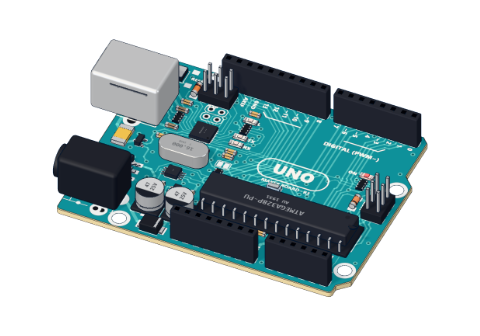 Arduino UNO R3 (or a compatible board)
- USB cable (A to B)
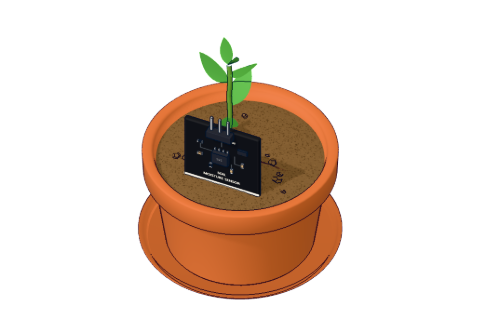 Capacitive soil-moisture sensor
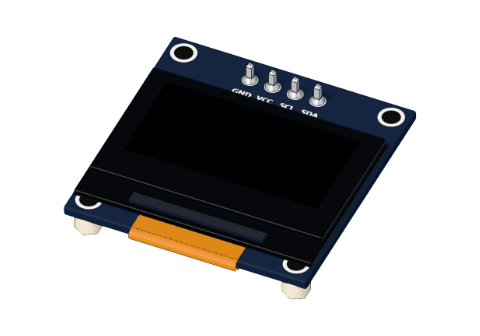 0.96" I²C OLED display
- Jumper wires (male–male)
Don't have the parts? Build it in 3D first.
What you will build
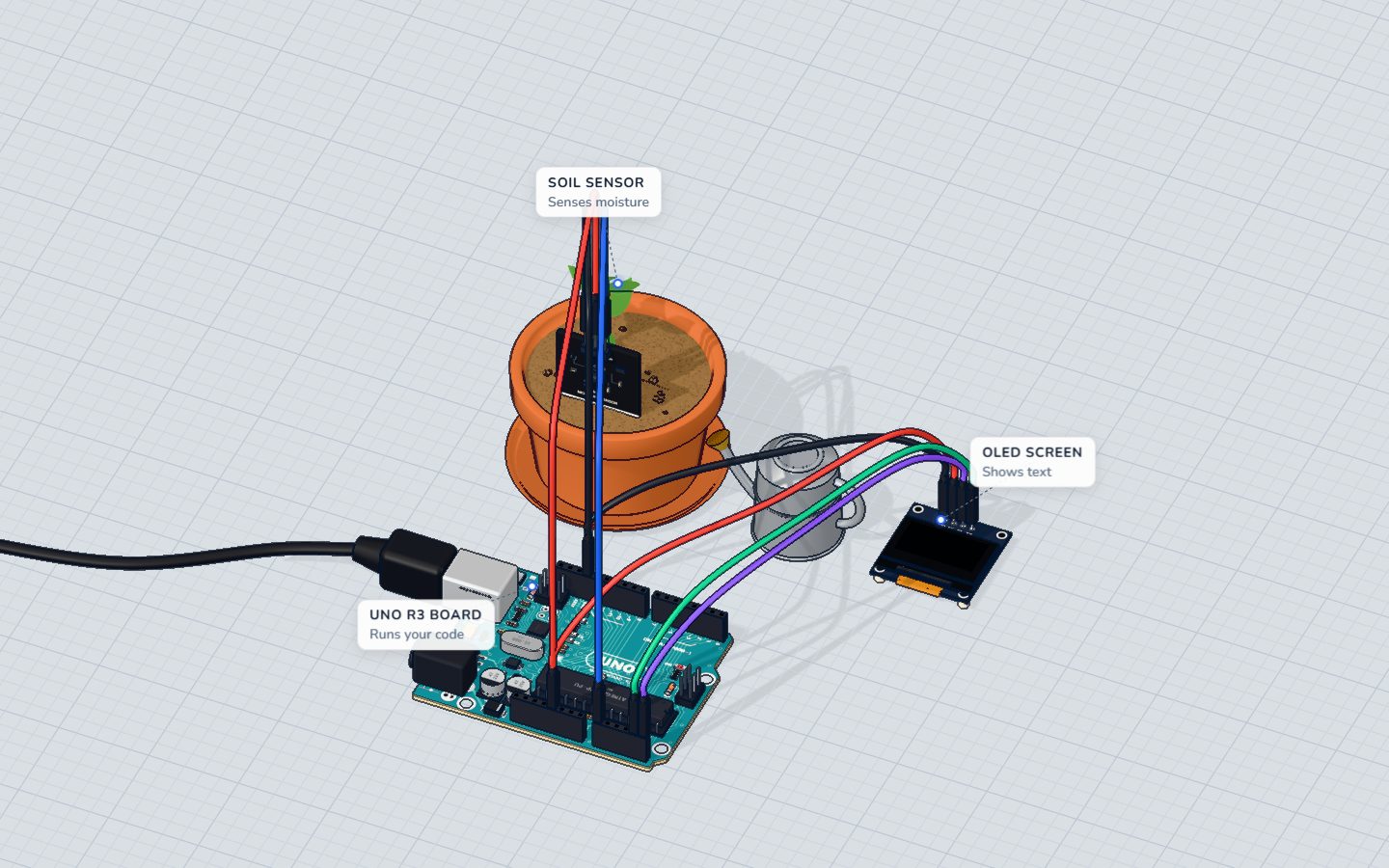
A soil sensor sits in a plant pot. Twice a second the Arduino reads it, turns the reading into a moisture percentage from 0 to 100 %, and draws it on a small OLED screen: the number in big digits, a bar that fills up, and a message. Below 30 % it asks "Water me!", above 85 % it warns "Too wet!", and in between it is "Happy :)".
Farms, greenhouses and smart gardens use the same idea at a bigger scale — often switching a water pump on automatically when the soil gets dry.
How it works
The capacitive soil sensor
A capacitive soil sensor has no bare metal in the soil. Its blade is a capacitor: water near it changes how much charge it can hold, and a small circuit on the board turns that into a voltage on its AOUT pin. The rule is easy to remember: wetter soil = lower voltage.
| Soil | Voltage on AOUT | analogRead() | Percent |
|---|---|---|---|
| Dry air | ≈ 2.54 V | ≈ 520 | 0 % |
| Dry soil (the lab's start) | ≈ 2.22 V | ≈ 455 | 25 % |
| "Water me!" limit | ≈ 2.16 V | ≈ 442 | 30 % |
| "Too wet!" limit | ≈ 1.46 V | ≈ 299 | 85 % |
| In water | ≈ 1.27 V | ≈ 260 | 100 % |
Because nothing metal touches the soil, it does not rust like the cheap two-prong sensors. More in the capacitive soil sensor explained.
From a reading to a percentage: map() and constrain()
map(raw, 520, 260, 0, 100) stretches one range onto another: 520 becomes 0, 260 becomes 100, and everything between is scaled in a straight line. Notice the range goes down (520 to 260) while the percentage goes up — map() is happy with that.
If the sensor reads 530 in very dry air, map() would give −3 %. constrain(x, 0, 100) clamps anything below 0 to 0 and above 100 to 100.
The OLED screen and I²C
The 0.96" OLED has 128 × 64 tiny pixels that make their own light — no backlight. It talks over I²C, a bus that needs only two wires: SDA (data) and SCL (clock). On the Arduino UNO they are pins A4 and A5. The screen has an address (0x3C), so other I²C parts could share the same two wires.
The code draws a picture in the UNO's memory first, and display() sends the whole picture to the screen in one go.
The wiring
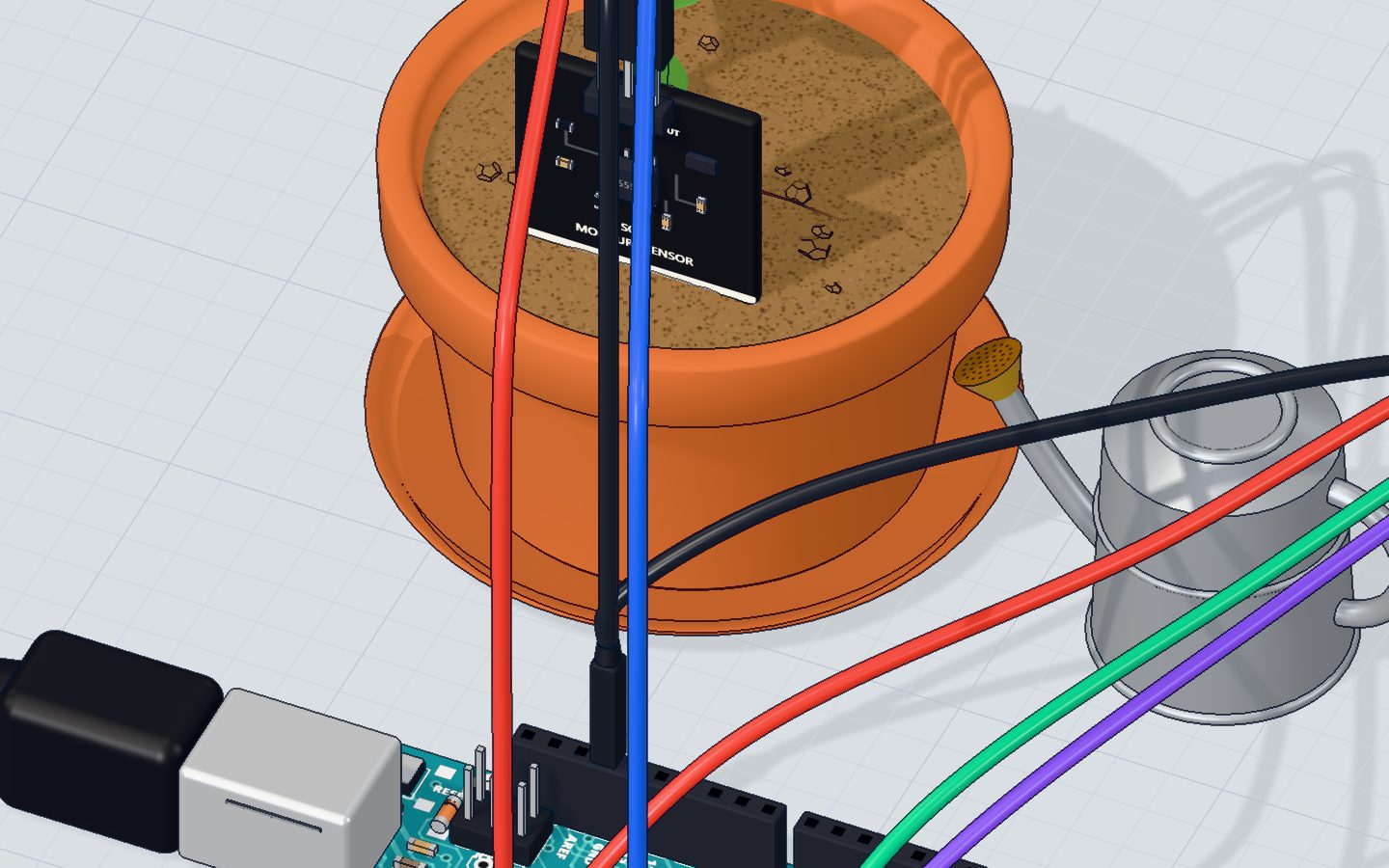
No breadboard needed: both modules connect straight to the UNO with jumper wires.
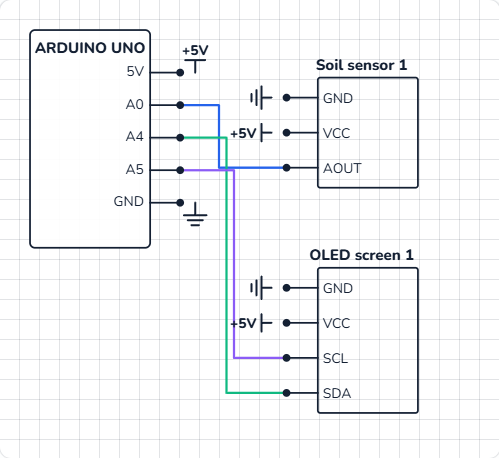
- Soil sensor: VCC → 5V, GND → GND, AOUT → A0.
- OLED: VCC → 5V, GND → GND, SDA → A4, SCL → A5.
- Push the sensor's blade into the soil up to the line — keep the electronics on top dry.
| Part pin | Goes to | What it does |
|---|---|---|
| Soil VCC | 5V | Powers the sensor (it works from 3.0 V up) |
| Soil GND | GND | Return path |
| Soil AOUT | A0 | The moisture, as a voltage |
| OLED VCC | 5V | Powers the screen |
| OLED GND | GND | Return path |
| OLED SDA | A4 | I²C data |
| OLED SCL | A5 | I²C clock |
The code, line by line
#include <OLED.h>
OLED screen;
const int SENSOR = A0;
const int DRY = 520, WET = 260;   // readings in dry air and in water

void setup() {
  screen.begin();
  Serial.begin(9600);
}

void loop() {
  int raw = analogRead(SENSOR);
  int percent = constrain(map(raw, DRY, WET, 0, 100), 0, 100);
  Serial.println(percent);

  screen.clearDisplay();
  screen.setTextSize(3);
  screen.setCursor(0, 0);
  screen.print(percent);
  screen.print("%");
  screen.drawRect(0, 28, 128, 10, WHITE);
  screen.fillRect(2, 30, percent * 124 / 100, 6, WHITE);
  screen.setTextSize(2);
  screen.setCursor(0, 46);
  if (percent < 30) screen.print("Water me!");
  else if (percent > 85) screen.print("Too wet!");
  else screen.print("Happy :)");
  screen.display();
  delay(500);
}
#include <OLED.h>andOLED screen;— our 3D lab's own small OLED library for the SSD1306 screen (see the questions below for real hardware).const int DRY = 520, WET = 260;— your sensor's two calibration readings: in dry air and in a glass of water.screen.begin()wakes the screen up at I²C address 0x3C.constrain(map(raw, DRY, WET, 0, 100), 0, 100)— the reading becomes 0–100 %, clamped so it never goes outside.screen.clearDisplay()wipes the picture in memory (not yet the screen).setTextSize(3)— each letter is 6 × 8 pixels at size 1, so size 3 makes them 18 × 24.setCursor(0, 0)starts at the top-left corner.drawRect(0, 28, 128, 10, WHITE)draws the bar's outline across the full width, 28 pixels down.fillRect(2, 30, percent * 124 / 100, 6, WHITE)fills it: at 100 % the fill is 124 pixels wide, at 50 % it is 62.if … else if … elsepicks exactly one message.screen.display()finally sends the whole 128 × 64 picture to the screen.
Common mistakes
- The screen stays black. SDA and SCL are swapped (SDA → A4, SCL → A5), or
display()is missing — nothing shows until you call it. - The percent is always 0 or 100. Your sensor's readings differ. Calibrate: print
rawin dry air and in water, and put those numbers inDRYandWET. - The numbers jump around. The sensor is pushed in only a little, or the soil is loose. Push it in up to the line and press the soil around it.
- Old pixels stay on the screen. You forgot
clearDisplay()at the start of each loop.
Try these challenges
- Change the "Water me!" limit to 40 %.
- Print the raw reading as well as the percent to the Serial Monitor, and calibrate your own
DRYandWET. - Add an LED on a pin that lights when the plant needs water (see Blink an LED).
- In the 3D lab, hold the watering can over the pot and watch the bar fill up; then type a moisture value in the sensor's window.
Check yourself
The soil gets wetter. What happens to the sensor's reading?
A capacitive sensor gives a lower voltage the wetter the soil: about 520 in dry air, about 260 in water.
Which two UNO pins does the I²C OLED use?
On the Arduino UNO, I²C is on A4 (SDA, data) and A5 (SCL, clock).
What does constrain(x, 0, 100) do?
Anything below 0 becomes 0, anything above 100 becomes 100.
Questions people ask
Which library do I use for the OLED on a real Arduino?
Our 3D lab uses its own small OLED.h library so the code stays short. On a real board, install Adafruit SSD1306 and Adafruit GFX from the Library Manager. They have the same drawing functions — clearDisplay(), setTextSize(), setCursor(), drawRect(), fillRect(), display() — but the setup is longer: Adafruit_SSD1306 screen(128, 64, &Wire, -1); and screen.begin(SSD1306_SWITCHCAPVCC, 0x3C);, plus screen.setTextColor(WHITE);. See the SSD1306 OLED guide.
How do I calibrate a capacitive soil moisture sensor?
Print analogRead(A0) to the Serial Monitor. Hold the sensor in dry air and note the number (your DRY), then stand it in a glass of water up to the line and note that (your WET). Every sensor is a little different.
Can the Arduino water the plant by itself?
Yes — add a small 5 V water pump, driven through a transistor exactly like the DC motor project, and switch it on for a few seconds when the percentage drops below your limit.
Why is a capacitive sensor better than a resistive one?
A resistive sensor passes current through the soil between two bare metal prongs, which corrode within weeks. A capacitive sensor is sealed, so it lasts.
What's next
Next, measure force instead of moisture: build a strength tester with a force sensor, a servo needle and a bell.
Try this project in 3DRun the code, press the parts, break things safely — free, in your browser.Open in 3D →Your progress stays on this device — no account, nothing sent anywhere.
Last updated 2026-10-29