The short answer
The Serial Monitor is a window that shows text sent by your Arduino over the USB cable. Three lines are all you need:
void setup() {
  Serial.begin(9600);              // open the connection at 9600 baud
  Serial.println("Hello from the UNO!");
}

void loop() {
}
Serial.begin(9600) opens the connection; Serial.println() sends a line of text. Open the Serial Monitor (in the Arduino IDE: the magnifying-glass button at the top right, or Tools → Serial Monitor), set it to 9600 baud, and the message appears.
What "serial" and "baud" mean
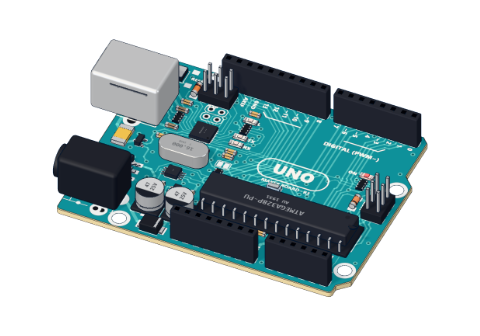
Serial means the bits travel one after another down a single wire, like people walking through a door in a line. On the UNO, that wire is pins D0 (RX, receive) and D1 (TX, transmit), which a small chip on the board turns into USB.
The baud rate is the speed: 9600 baud is 9600 bits per second — roughly 960 letters a second. That is plenty for messages and sensor readings.
| Baud | About how many characters per second |
|---|---|
| 9600 | 960 |
| 57600 | 5760 |
| 115200 | 11 520 |
print vs println
Serial.print(x)sendsxand stays on the same line.Serial.println(x)sendsxand then starts a new line.
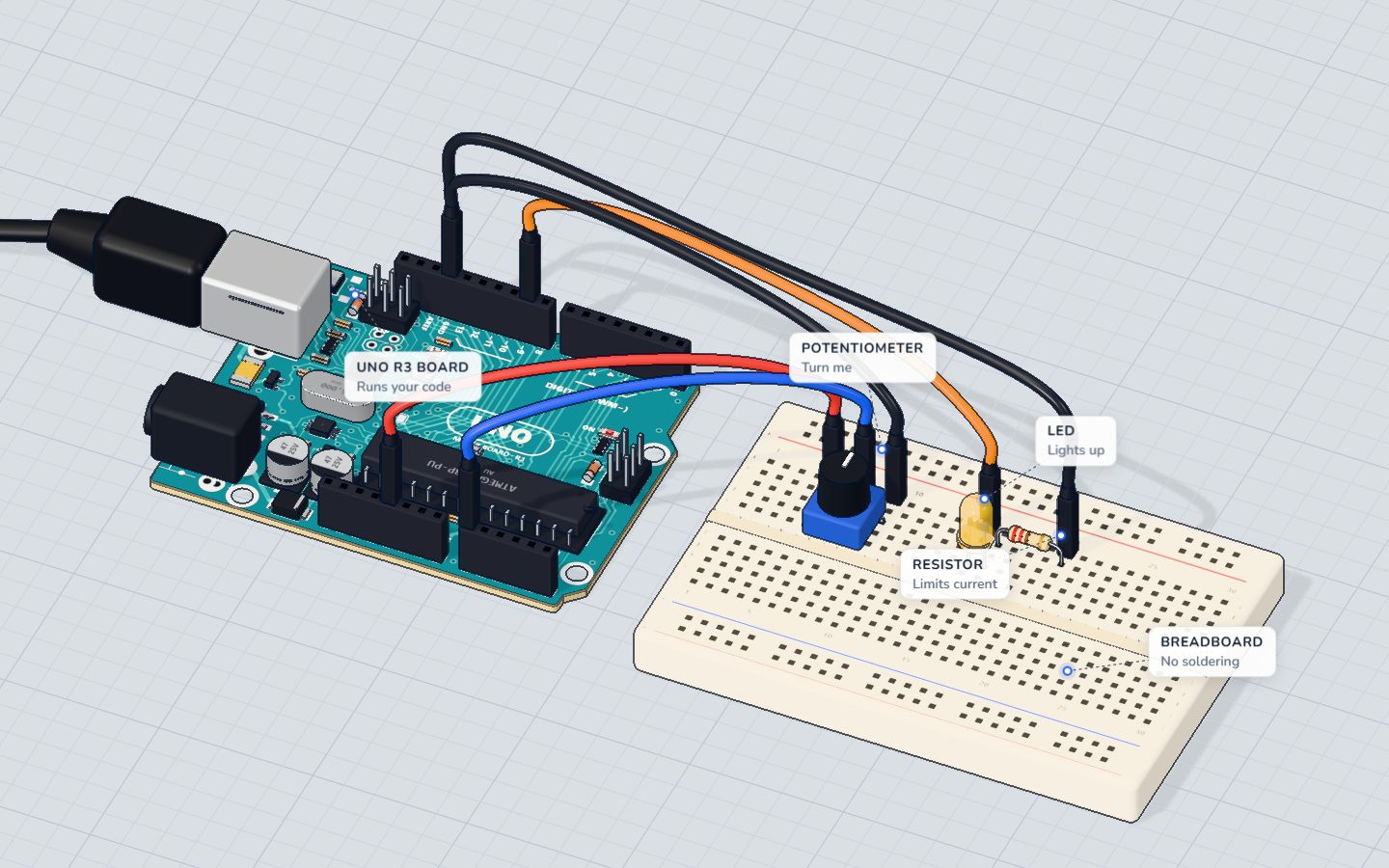
Mix them to build one tidy line from several pieces. This is from our Knob project:
Serial.print("knob ");
Serial.print(reading);
Serial.print("  ->  LED ");
Serial.println(brightness);
It prints lines like knob 512 -> LED 127. You can print text in quotes, whole numbers and decimals. Serial.print(celsius, 1) prints a decimal number with one digit after the point — the Thermostat project uses it to show 24.3 C fan off.
Using it to find bugs
The Serial Monitor is the best debugging tool a beginner has. When something does not work, print what the board thinks is happening:
- Is the code even running? Print
"setup done"at the end ofsetup(). If you never see it, the board is not running your sketch. - What is the sensor reading? Print the raw number. If a light sensor always shows 0 or 1023, the wiring is wrong, not the code.
- Which way did the
ifgo? Print inside each branch:Serial.println("dark");/Serial.println("bright");. - Did the button change? Print only when the value changes, like our Push-a-button project:
int now = digitalRead(BUTTON);
digitalWrite(LED, now);
if (now != was) {         // only report a change
  Serial.println(now == HIGH ? "pressed" : "released");
  was = now;
}Reading what you type
The Serial Monitor works both ways: type in the box at the top, press Send (or Enter), and the text goes to the board. Serial.available() tells you how many characters have arrived; Serial.read() takes one of them.
Here is a small sketch that switches the board's LED with the letters 1 and 0:
void setup() {
  pinMode(LED_BUILTIN, OUTPUT);
  Serial.begin(9600);
  Serial.println("Send 1 for on, 0 for off");
}

void loop() {
  if (Serial.available() > 0) {
    char c = Serial.read();
    if (c == '1') {
      digitalWrite(LED_BUILTIN, HIGH);
      Serial.println("LED on");
    }
    if (c == '0') {
      digitalWrite(LED_BUILTIN, LOW);
      Serial.println("LED off");
    }
  }
}
Every character you type arrives separately, including the invisible newline at the end of the line — that is why we check for '1' and '0' and simply ignore everything else. To read a whole number like 120, use Serial.parseInt().
The Serial Plotter
The Arduino IDE also has a Serial Plotter (Tools → Serial Plotter). It draws a live graph of the numbers you print, one per line. Print a sensor reading with Serial.println(reading); and watch it as a wave — great for knobs, light sensors and distance sensors.
Common mistakes
- Nothing appears. You forgot
Serial.begin(9600);insetup(), or the monitor is closed, or the wrong port is selected. - Gibberish. The baud rates don't match. Set both to 9600.
- Upload fails while the circuit uses pins 0 and 1. Those pins are the serial line. Move your parts to pins 2–13.
- Everything prints on one long line. Use
println, notprint, for the last piece.
Check yourself
What does Serial.begin(9600) do?
It starts serial communication; the Serial Monitor must also be set to 9600 baud.
What is the difference between Serial.print and Serial.println?
print stays on the same line; println ends the line.
The Serial Monitor shows strange symbols. What is the most likely cause?
Set the same speed in Serial.begin() and in the monitor.
Questions people ask
Why is my Arduino Serial Monitor not showing anything?
Check four things: Serial.begin(9600) is in setup(), the monitor's baud rate is 9600, the right COM port is selected under Tools → Port, and your code actually reaches a Serial.print line.
What baud rate should I use for Arduino?
9600 is the classic choice and works for almost every beginner project. Use 115200 when you print a lot of data quickly. Just make sure the sketch and the monitor use the same value.
Can I use pins 0 and 1 while using the Serial Monitor?
Better not. On the UNO, pins 0 (RX) and 1 (TX) carry the USB serial data, so parts on them can block uploads and garble messages.
Does Serial.print slow down my Arduino?
A little. At 9600 baud each character takes about 1 ms to send, and if the send buffer fills up, Serial.print waits. Print less often, or use a faster baud rate.
Your progress stays on this device — no account, nothing sent anywhere.
Last updated 2026-10-29